


To improve website speed, you need to zero in on three key areas: optimizing your images, enabling smart caching, and minifying your site's code (CSS, JavaScript, and HTML). Hitting these three targets is the fastest way to solve the most common performance bottlenecks and see a real, noticeable improvement in how quickly your pages load.
Why A Fast Website Is Non-Negotiable
In the online world, speed isn’t just a nice-to-have feature—it’s the bedrock of trust and a direct line to your revenue. A slow website creates instant friction, chipping away at a visitor's confidence before they’ve even had a chance to see what you offer. Every single second of delay is another reason for a potential customer to give up and head straight to a competitor.
This isn't just a hypothetical problem; it has a real financial impact. Picture this: you run a small e-commerce shop in Baltimore, right in the middle of the holiday rush. A customer finds your site, loves a product, and adds it to their cart. But the checkout page just spins for a few extra seconds. Frustrated, they're gone. You didn't just lose that one sale—you likely lost a future loyal customer. This exact scenario plays out thousands of times a day for businesses with sluggish websites.
The Real-World Cost of a Slow Website
The data doesn't lie. A staggering 53% of mobile users will bounce if a website takes longer than three seconds to load. With most people browsing on their phones, that means you could be losing over half your audience before they even see your homepage. This isn't just a missed opportunity; it's a direct hit to the $2.6 billion the retail industry loses every year because of slow sites.

This is why getting familiar with a tool like Google PageSpeed Insights is so important. It gives you a clear, no-nonsense report card on your site’s health, showing you exactly where you stand on the metrics that matter most to users and search engines.
Connecting Speed to Search Rankings
Beyond just keeping users happy, website speed is a massive ranking factor for Google. The search engine wants to send its users to sites that provide a fast, smooth experience, and it measures this with a set of performance metrics called the Core Web Vitals.
These vitals break down the user experience into three key areas:
- Largest Contentful Paint (LCP): How fast does the main, most important content on the page load?
- Interaction to Next Paint (INP): How quickly does the page respond when a user clicks, taps, or types?
- Cumulative Layout Shift (CLS): How stable is the page visually? Does stuff jump around as it loads?
A poor score here tells Google that your site delivers a clunky experience, which can directly torpedo your rankings, especially in a competitive local market like Maryland. At the end of the day, a faster site leads to better rankings, which means more traffic and, ultimately, more conversions.
Finding and Fixing Your Speed Bottlenecks
You can't fix what you can't see. Before you start tweaking code or compressing images, you have to get a clear, data-backed picture of what’s actually bogging your site down. This diagnostic phase is the most important step—it’s what turns guesswork into a precise action plan.
The good news is that the best diagnostic tools are free and easy to find. Your first stops should be Google PageSpeed Insights and GTmetrix. Just plug in your website's URL, and they'll spit out a detailed performance report. The real skill, however, isn't just looking at the top-line score. It's learning how to read the story the data is telling you.
Decoding the Metrics That Matter
A simple performance score of 85 is nice, but it doesn’t explain why your site feels sluggish to a real person. To get actionable insights, you need to zero in on the Core Web Vitals—these are the specific metrics Google uses to measure actual user experience.
Think of these vitals as your roadmap to what needs fixing:
- Largest Contentful Paint (LCP): This measures how long it takes for the biggest thing on the screen—usually an image or a block of text—to load. If your LCP is slow, the culprit is often a massive, unoptimized image or a sluggish server.
- Interaction to Next Paint (INP): This one tracks how quickly your page reacts when someone clicks a button, taps a menu, or does anything interactive. A high INP usually points to chunky JavaScript that’s hogging the browser’s attention.
- Cumulative Layout Shift (CLS): Ever been about to click something, only for an ad to load and push it down the page? That’s CLS. It measures visual stability, and a high score means your page is jumping around as it loads, which is incredibly frustrating for users.
Key Takeaway: Stop obsessing over a perfect 100 score. Seriously. Your goal should be getting each of these three core metrics into the "Good" range. A passing grade on Core Web Vitals is a much stronger sign of a great user experience than some vanity score.
To help you know what to aim for, here’s a quick breakdown of Google's performance thresholds.
Core Web Vitals Performance Thresholds
This table gives you a simple reference for the scores you need to hit for each of the core metrics.
| Metric | Good | Needs Improvement | Poor |
|---|---|---|---|
| LCP | ≤ 2.5 seconds | > 2.5s and ≤ 4s | > 4 seconds |
| INP | ≤ 200 milliseconds | > 200ms and ≤ 500ms | > 500 milliseconds |
| CLS | ≤ 0.1 | > 0.1 and ≤ 0.25 | > 0.25 |
Getting all three into the "Good" column is your primary mission. Once you've achieved that, you can worry about fine-tuning later.
From Report to Action Plan
Once you have your report, it's time to find the biggest offenders. PageSpeed Insights gives you a handy "Opportunities" section that basically serves as a prioritized to-do list, flagging things like "Serve images in next-gen formats" or "Reduce initial server response time."
For a professional services firm here in Maryland, a speedy website is what convinces a local lead to hit "contact us" instead of the back button. The data is brutal: a staggering 88.5% of visitors will leave a slow site, and even a one-second load time improvement can boost conversion rates as high as 40%. Considering that 87% of users ditch a mobile site after just a two-second delay, a fast experience is non-negotiable for capturing that valuable local traffic. For more on this, you can read the full research on eCommerce speed statistics.
To get started, sort the recommendations by their estimated time savings. If the report says optimizing your homepage banner image could save 2.1 seconds, that's your #1 priority. If another suggestion to minify some CSS only saves 80 milliseconds, it can wait. This approach ensures you’re tackling the issues that deliver the most noticeable improvements first. A comprehensive audit is the foundation of any successful optimization strategy. For a structured approach, you can reference our detailed web audit checklist to ensure no stone is left unturned.
Once you’ve got a handle on what’s slowing your site down, it's time to go after the low-hanging fruit. These are the quick wins—the high-impact fixes that give you the most bang for your buck with the least amount of effort. Tackling these common bottlenecks first builds momentum and gives your users an immediate, noticeable speed boost.
This simple flow—Measure, Identify, Fix—is the core of any successful speed optimization project.
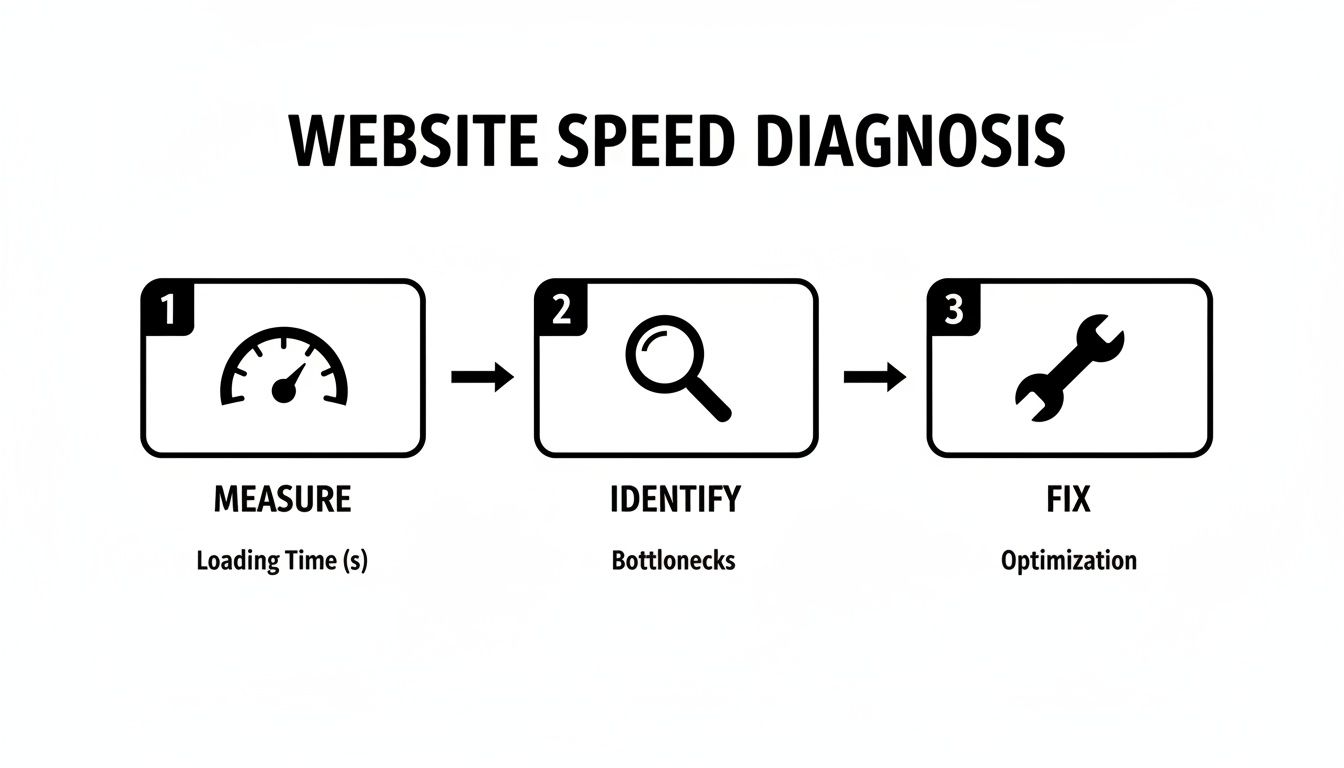
This is the exact path we're going to follow, turning analysis into real-world action.
Tame Your Unruly Images
Images are almost always the heaviest things on a webpage, making them the number one speed killer. A few large, uncompressed photos can single-handedly drag your load times from snappy to painfully slow. The goal here is simple: shrink the file size without making the images look bad.
Start by getting into the habit of compressing every single image before you upload it. Free tools like TinyPNG are fantastic for this and can slash file sizes by 50-80% with almost no visible difference. That’s a massive, easy win.
Next, you need to be using modern image formats. JPEGs and PNGs are old news. Formats like WebP offer way better compression and quality. Many modern platforms and plugins can even automatically convert your images to WebP for browsers that support it, so you don't have to do it manually.
If you really want to go deep on this, our guide on how to optimize images for the web covers everything from compression to lazy loading.
Put Your Browser Cache to Work
Browser caching is one of the most powerful and easiest speed boosts you can implement. It works by telling a visitor's web browser to save static files—like your logo, CSS, and JavaScript—on their own device after their first visit.
When they come back to your site, their browser doesn't have to download all of that stuff all over again. It just loads the saved copies. For repeat visitors, this makes every subsequent page load feel almost instant.
This is a game-changer for improving the experience for your loyal audience, encouraging them to click around and engage more. Most caching plugins for platforms like WordPress let you turn this on with just a few clicks, making it a true set-it-and-forget-it fix.
A study by Portent found that websites with a one-second load time have a conversion rate three times higher than sites that load in five seconds. Leveraging browser caching is a key strategy to get closer to that one-second mark for returning users.
Minify Your Code for Faster Rendering
Your website’s code—HTML, CSS, and JavaScript—is full of extra stuff that browsers don't need. Things like spaces, comments, and line breaks are great for developers, but they just add unnecessary weight to the files.
Minification is the process of automatically stripping out all of that junk. It shrinks your code files, meaning they download and run much faster.
- CSS Minification: Compresses the styling code for your site's look and feel.
- JavaScript Minification: Shrinks the scripts that make your site interactive.
- HTML Minification: Reduces the size of your page's core structure.
Imagine your code is a long essay. Minification is like turning it into a concise summary—all the essential info is still there, just in a much more compact form.
For example, a perfectly readable chunk of CSS might look like this:
body {
font-family: Arial, sans-serif;
line-height: 1.6;
background-color: #f9f9f9; /* Light grey background */
}
After minification, it becomes a single, dense line:
body{font-family:Arial,sans-serif;line-height:1.6;background-color:#f9f9f9}
The browser reads both versions perfectly, but the second one is way smaller and faster to process. Many performance plugins, like WP Rocket for WordPress, can handle all this for you automatically. By knocking out these three issues—images, caching, and minification—you'll have solved the most common problems flagged by speed tests and built a much faster foundation for your site.
After you’ve handled the quick wins like image compression and caching, it’s time to look at your site’s core infrastructure. One of the most significant upgrades you can make here is implementing a Content Delivery Network (CDN). This isn't just another on-page tweak; it’s about reinforcing the very foundation your site is built on to guarantee a fast experience for every visitor, everywhere.
Think of your web server as a single library in, say, Baltimore. If someone from California wants a book, it has to travel all the way across the country. That trip takes time, creating a delay we call latency.
A CDN is like building a global network of smaller, identical libraries. When that same visitor from California requests your site, the content is delivered from a much closer "library" in Los Angeles, slashing the travel time.
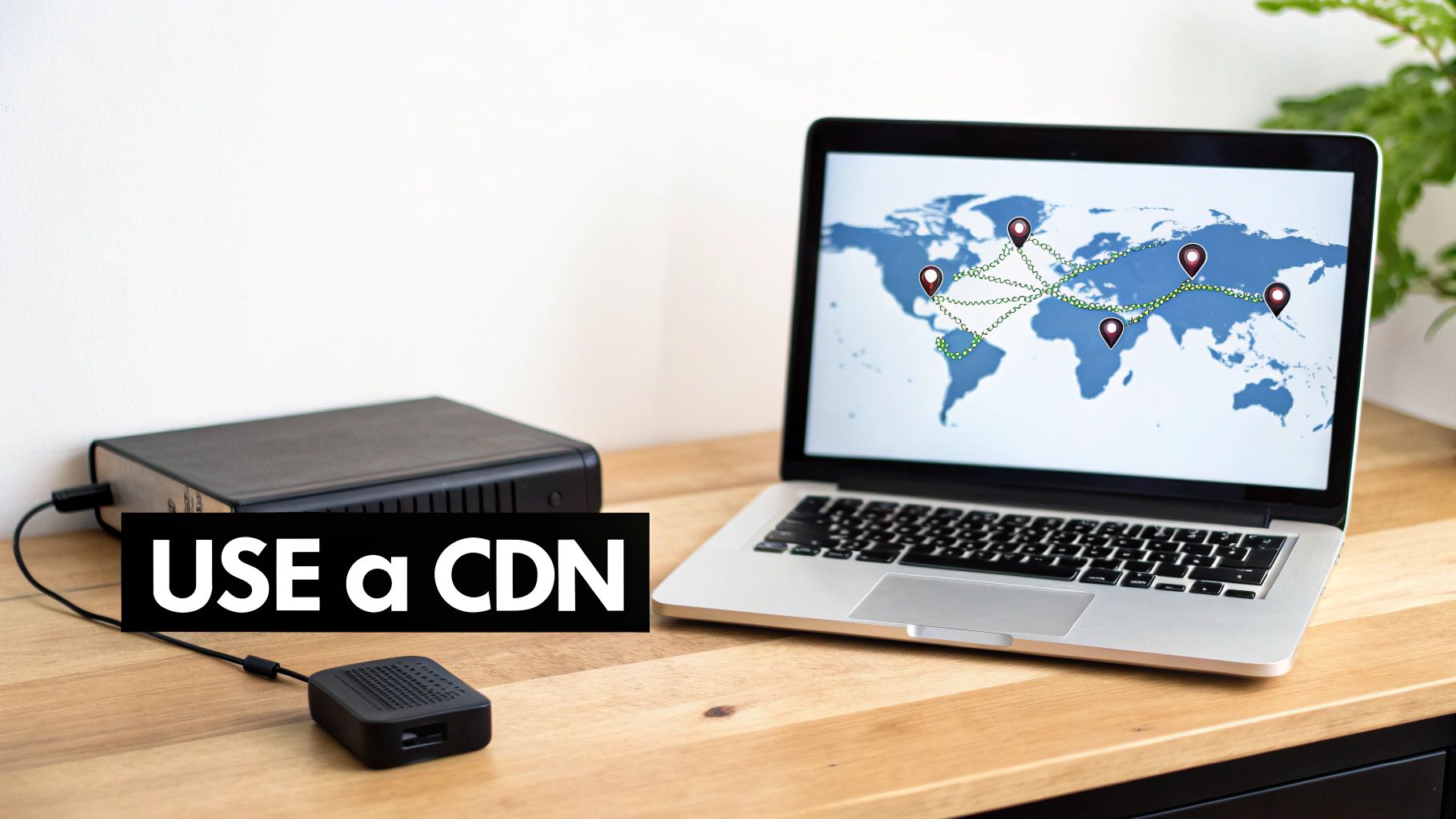
The idea is simple: a CDN spreads your website's assets across a worldwide network, making sure data travels the shortest possible distance to your users. This one change is one of the most effective ways to crush latency and boost your site’s global performance.
Why Every Business Needs a CDN
It's a common myth that CDNs are only for giant, international corporations. The truth is, even if your entire audience is within Maryland, a CDN still offers huge advantages. Visitors from Western Maryland will get a faster response from a server on the East Coast than one located miles away. Plus, your site doesn't exist in a vacuum—search engine crawlers and other web services access your site from all over the world.
A CDN also adds a crucial layer of stability and security. What happens if your local business goes viral on social media? Without a CDN, your single server could easily get overwhelmed, causing your site to crawl to a halt or crash completely.
A CDN absorbs that traffic spike by distributing the load across its massive network, effortlessly handling surges that would cripple a standalone server. This keeps your site fast and online right when the most people are trying to see it.
By distributing your site's content closer to your visitors, a CDN can reduce the physical distance data has to travel by up to 90%. This directly translates into a faster Time to First Byte (TTFB) and a much quicker overall loading experience.
Choosing the Right CDN Provider
The CDN market is packed with excellent providers, each offering a different mix of features and pricing. The right choice depends on your budget, technical needs, and the scale of your website.
Here are a few of the most popular and reliable options to get you started:
- Cloudflare: A dominant player in the space, known for its incredibly generous free plan that's more than enough for many small and medium-sized businesses. It’s famously easy to set up and bundles in great security features like DDoS protection.
- Bunny.net (formerly BunnyCDN): This provider is loved for its predictable, pay-as-you-go pricing and fantastic performance. It's a great, budget-friendly choice for businesses that want more granular control without a big monthly commitment.
- StackPath (formerly MaxCDN): Geared more towards developers and high-traffic sites, StackPath offers a powerful network with advanced edge computing capabilities. It's a premium option for those who need maximum performance and customization.
Ultimately, the best CDN is the one that fits your technical setup and business goals. But remember, a CDN only works as well as the server behind it. Pairing a great CDN with a slow, unreliable host will only get you so far. As you evaluate your setup, understanding the nuances of different web hosting services is a critical first step. By strengthening both your server and your delivery network, you create a truly resilient and high-performing foundation for your website.
Platform-Specific Tuning for WordPress and Shopify
General speed advice is a great starting point, but the real performance wins are found in platform-specific tweaks. The optimizations that make a WordPress blog fly might not even apply to a Shopify store, and vice versa. Knowing the unique quirks and architecture of your content management system (CMS) is absolutely key to unlocking its top speed.
Since most businesses we work with are on either WordPress or Shopify, we'll cut straight to an actionable roadmap for both. This isn't theory—these are practical steps you can take today to make your specific site faster.
WordPress Performance Optimization
WordPress powers an incredible 43% of all websites, but that famous flexibility can also be its biggest performance downfall. A mess of themes, plugins, and custom code can easily create a tangled web that grinds everything to a halt. Taming a WordPress site is all about choosing the right tools and ruthlessly keeping things lean.
Your first and most important line of defense is a high-quality caching plugin. Caching essentially creates static, ready-to-go HTML versions of your pages, which dramatically cuts down on the server processing needed to show them to visitors. For any serious WordPress site, this is non-negotiable.
After caching, your next target is plugins. It’s not about the number of plugins, but their quality. I've seen a single, poorly coded plugin add more bloat than a dozen well-optimized ones combined. Audit your installed plugins regularly and ask the tough question: "Is this absolutely essential?" If the answer is no, get rid of it.
Expert Tip: Install the Query Monitor plugin. It’s a developer tool that shows you which plugins are making the most database queries or running slow scripts. This data-driven approach takes the guesswork out of finding the real culprits behind plugin-related slowdowns.
Top WordPress Speed Optimization Plugins
The sheer number of speed plugins can feel overwhelming, but a few consistently rise above the rest. Here's a quick comparison of our go-to recommendations to help you find the right fit for your site.
| Plugin | Key Feature | Best For | Pricing |
|---|---|---|---|
| WP Rocket | All-in-one suite with caching, file minification, and lazy loading. | Users who want powerful results with a simple, user-friendly interface. | Premium |
| Perfmatters | Disables unused WordPress features and scripts on a per-page basis. | Users looking for granular control to reduce bloat and unnecessary requests. | Premium |
| LiteSpeed Cache | Server-level caching that is blazingly fast on a LiteSpeed server. | Users whose hosting provider uses LiteSpeed Web Server for maximum performance. | Free |
| Imagify | Automated image compression and WebP conversion. | Anyone who needs a simple, set-and-forget solution for image optimization. | Freemium |
Each of these tools excels in its own way. WP Rocket is fantastic for its ease of use, while Perfmatters gives you the fine-tuned control needed to shave off every last millisecond. The free LiteSpeed Cache is unbeatable if your host supports it, and Imagify is a must-have for handling images efficiently.
Shopify Speed Best Practices
Shopify is a hosted platform, which is great because you don't have to sweat the server management. The flip side is you have less control over the back-end infrastructure. For Shopify store owners, speed optimization is almost entirely about the front-end: your theme, your apps, and your media.
The biggest performance hogs on a Shopify store are almost always third-party apps. Every app you install has the potential to add its own JavaScript and CSS files, creating more network requests that can block your page from rendering quickly.
Just as with WordPress plugins, you need to be ruthless. Go through your installed apps one by one and remove anything that isn't providing a clear, positive return on investment. Even an app that seems harmless can inject code that significantly drags down your store's performance.
Another critical area is your theme's code. Many Shopify themes come loaded with flashy features you might never use—think complex sliders or fancy animations—all of which add to the code bloat.
Here are a few key actions to take for your Shopify store:
- Audit Your Apps: Open your browser's developer tools (right-click > Inspect) and look at the "Network" or "Waterfall" tab. This will show you which scripts are taking the longest to load, and you can often trace them back to a specific app.
- Optimize Theme Code: If you're comfortable with Liquid, Shopify's templating language, you can manually remove unused features or defer the loading of non-critical CSS and JavaScript.
- Compress Images Manually: While Shopify performs some automatic image compression, you can almost always get much smaller file sizes by compressing your product images before you upload them.
- Limit Custom Fonts: Using too many custom web fonts can really slow down rendering time. Try to stick to one or two, and use system fonts wherever you can get away with it.
Ultimately, whether you're on WordPress, Shopify, or something else, the core principles remain the same. A fast website starts with choosing the right foundation from the very beginning. For more guidance on this crucial first step, check out our in-depth comparison of the best CMS for small business to make sure you're building on solid ground.
Frequently Asked Website Speed Questions
Diving into website speed can feel like opening a can of worms. There's a ton of jargon, and it's easy to get lost. To help you cut through the noise, I've pulled together answers to the most common questions we get from business owners just like you.
Think of this as your quick-start guide to clearing up the confusion.
How Fast Should My Website Load?
The magic number everyone talks about is under 3 seconds. That’s a decent goal.
But if you want to get serious about user experience and SEO, Google sets the bar higher. They recommend a Largest Contentful Paint (LCP) of 2.5 seconds or less. This is the point where users feel like the page is loading fast, which is what really matters.
For e-commerce sites, the pressure is even greater. You should be aiming for a load time between 1-2 seconds. Every extra second of waiting is proven to kill conversion rates. And remember, always test your speed on a simulated mobile connection—that’s how most of your visitors are actually seeing your site.
Can Plugins Slow Down My WordPress Site?
Absolutely. But here's the thing people miss: it's not always about the number of plugins, but the quality.
A single, badly coded plugin can do more damage than ten well-built ones. It might be loading heavy scripts on every page or making constant, unnecessary requests to your database, creating a massive performance bottleneck.
The best approach is to be ruthless with a regular plugin audit.
- If you're not using it, deactivate and delete it. No exceptions.
- Stick with plugins from reputable developers who push out regular updates.
- Use a performance tool to pinpoint which specific plugins are the worst offenders. It's often surprising which ones are the real resource hogs.
What Is the Difference Between Browser Caching and a CDN?
Both make your site faster, but they tackle different parts of the problem. Here’s a simple way to think about it: browser caching helps people who've already visited your site, while a CDN helps everyone, especially those who are geographically far from your server.
Browser caching is like giving a return visitor a VIP pass. After their first visit, their browser saves static files—like your logo, images, and stylesheets—on their own computer. When they come back, their browser just loads those local files instead of downloading everything again. This makes repeat visits feel almost instant.
A Content Delivery Network (CDN), on the other hand, is a global network of servers that keeps copies of your website. When someone visits your site, the CDN delivers the content from the server that's physically closest to them. This drastically cuts down the initial load time for every single user, no matter where they are in the world.
The real pro move is to use both. A CDN makes that critical first visit snappy, and browser caching makes every return visit even faster. It’s a one-two punch that creates a consistently fast experience for your entire audience.
Will Optimizing Images Make Them Look Bad?
This is a huge fear, but the short answer is no—not if you do it right.
Modern image compression tools are incredibly good at shrinking file sizes without any noticeable loss in quality. This is what's known as 'lossless' or 'near-lossless' compression, and for web use, it’s more than enough.
Even better, using next-gen image formats like WebP is a total game-changer. WebP can slash file sizes by over 30% compared to a standard JPEG, all while looking just as crisp. The goal isn’t to degrade your images; it's to find that sweet spot between the smallest possible file and a sharp, professional look. It's surprisingly easy to achieve.
Ready to stop guessing and start seeing real performance improvements? The team at Raven SEO provides expert website support and optimization services to help Maryland businesses thrive online. Schedule your no-obligation consultation today and let's build a faster, more effective website together.